Manpower Agency Platform — Client User Manual

Plain-English guide to every feature, user role, and daily workflow

Welcome Guide

How the Whole Platform Works

Everything in one place: how your agency team runs daily recruitment and payments, how you stay in control as the Agency Admin, and what your workers see on their phones.

1. Two Portals Under One Roof

Platform Overview

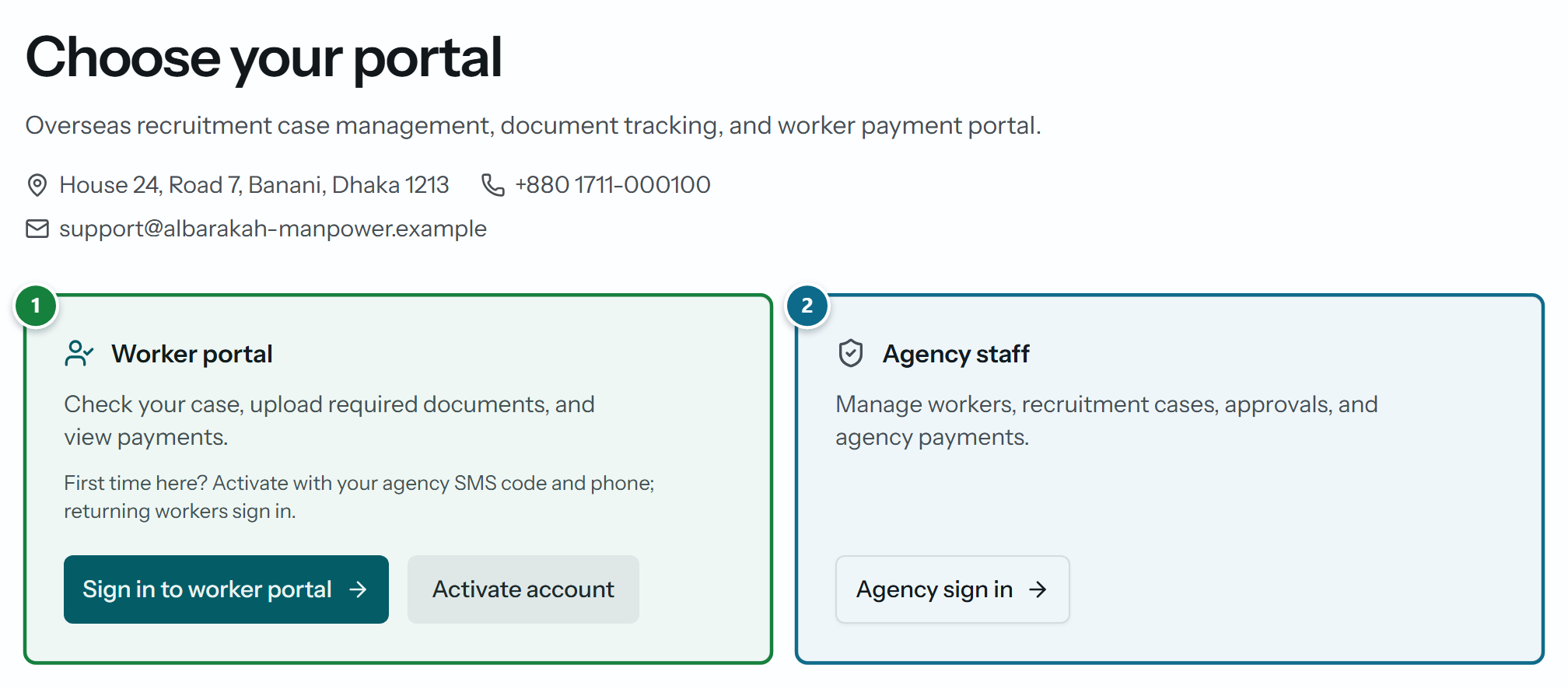
When someone visits your website, they see a simple welcome screen showing your agency name, license number, address, and contact details—with two separate doors:

  • Worker Portal (for your customers): Mobile-friendly portal where workers activate their account with an SMS code, track their visa/case stages, upload requested documents, send payment slips, and download official receipts.
  • Agency Staff Portal (for you and your branch team): Secure workspace where staff register walk-in workers, manage cases and documents, prepare service agreements, and record payments—while you review approvals, expenses, and financial reports.
Annotated home screen showing Worker portal card and Agency staff card Click to zoom

What visitors see on the home page

Customers and staff never mix—each group signs in through its own card.

  • 1Worker portal: Returning workers sign in with their mobile number; new workers tap Activate account using their SMS code.
  • 2Agency staff: Branch staff and Agency Admins sign in with their agency email and password.

2. The 3 User Roles at a Glance

Roles & Access
You — Agency Admin

Owner / Head Office Control

Sees all branches, all money figures, and decides every approval request.

  • Set up branches, staff, destinations, checklists, packages, PDF templates, and reminders.
  • Approve or reject staff-entered payments, worker payment slips, expenses, transfers, and cancellations.
  • View profit, cash flow, branch comparisons, Excel/CSV exports, bulk messages, and audit logs.
Your Team — Branch Staff

Day-to-Day Case & Desk Work

Locked strictly to their own assigned branch—they never see other branches or agency profit.

  • Register workers (with 2-line passport auto-fill) and manage their cases and documents.
  • Prepare package agreements, record desk payments, and submit expenses.
  • Help walk-in workers with lost phones, forgotten passwords, or branch transfers.
Your Customers — Workers

Self-Service Phone Portal

Sees only their own case, documents, bills, and messages—isolated from all agency screens.

  • Check current stage progress and see exactly what is needed next.
  • Upload requested documents (PDF/JPG/PNG) directly from their phone.
  • View payment schedules, upload bKash/bank slips for verification, and download official PDFs.

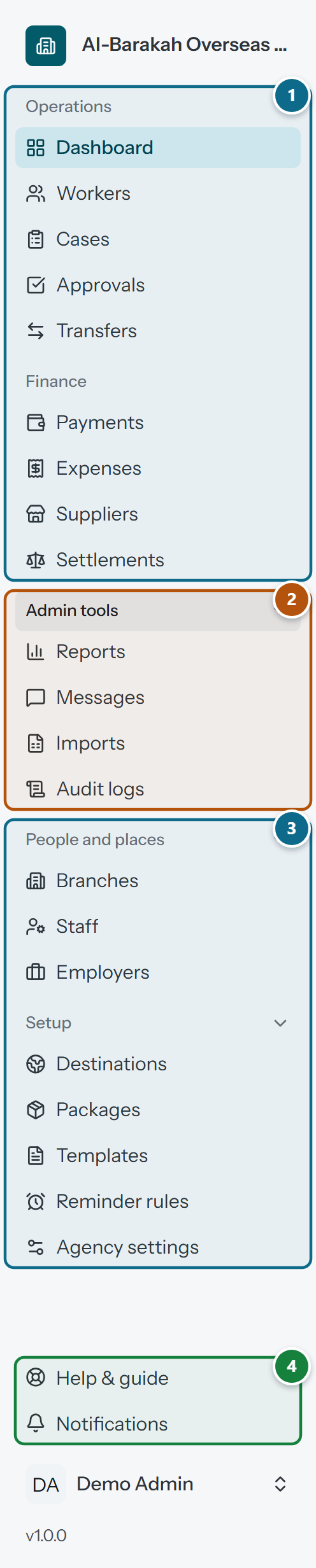
Inside the Agency Menu (What Staff vs Admin See)

The sidebar automatically hides admin-only tools when a Branch Staff member signs in.

  • 1Operations & Finance: Used daily by both Admin and Branch Staff (Dashboard, Workers, Cases, Approvals, Transfers, Payments, Expenses, Suppliers, Settlements).
  • 2Admin tools (Admin only): Financial Reports, Bulk Messages, Spreadsheet Imports, and Security Audit Logs.
  • 3People & Setup (Admin only, except Employers): Branches, Staff, Destinations, Packages, PDF Templates, Reminder Rules, and Agency Settings.
  • 4Footer: Built-in Help & guide, Notifications bell with unread badge, and your profile / security settings.

3. Who Can Do What — Quick Comparison

Permissions Matrix
Feature / Area Agency Admin (You) Branch Staff (Your Team) Worker (Customer)
Branches, Staff, Destinations, Packages, Templates Full setup Hidden (view packages only) —
Register Workers & Manage Cases All branches Own branch only Views own case
Upload & Verify Case Documents Upload, Scan & Verify Upload & Verify Upload own & Download shared
Skip a Checklist Item (Waiver) / Cancel a Case Approve & apply Submit request —
Record Worker Payments Approved immediately Pending Admin approval Send slip for approval
Expenses & Supplier Bills Approve, pay & see totals Submit own only (no totals) —
Agency Profit, Cash Flow & Financial Reports Full reports & Excel export Never shown —
Bulk Messages, Reminders, Imports & Audit Logs Full access Hidden Receives alerts

4. How Two-Person Safety Controls Protect Your Business

Built-in Safeguards

Manpower agencies handle large sums of cash, original passports, and sensitive legal documents. To prevent mistakes, hidden edits, or fraud, the platform enforces three simple rules automatically:

  • No silent deletions: Payments, expenses, case notes, and issued PDFs can never be deleted. If a mistake happens, an Admin records an official Reversal or Rejection with a written reason so the full history stays intact.
  • Money waits for Admin approval: When a branch staff member enters a payment or expense—or when a worker uploads a bKash/bank payment slip—it stays Pending approval and does not change the worker's balance until an Agency Admin approves it.
  • Two-person identity protection: Changing a worker's legal name, date of birth, passport, phone number, or resetting their password after a lost phone requires one person to verify their physical document and submit the request, and an Admin to approve it. For assisted password resets, even an Admin cannot approve their own request—a second Admin must approve it.
Launch Checklist

First-Time Setup (Do These in Order)

When you sign in as Agency Admin for the first time, the Dashboard shows a 4-step Getting Started card. Follow these six steps once to get your agency ready for live workers.

1. Your 6-Step Launch Path

Setup Order
Step 1

Add Branch Offices

Create each office (e.g. Dhaka Head Office, Chattogram Branch) with a short branch code like DHK or CTG.

Step 2

Set Destinations & Checklists

Pick or add destination countries and list every task and document required at each stage.

Step 3

Create Service Packages

Define standard prices, included services, instalment limits, and optional timed discount offers.

Step 4

Add Staff & Employers

Create email logins for branch staff (assigned to their branch) and add your overseas partner employers.

Step 5

Settings, PDFs & Reminders

Set late-fee grace days, customize PDF agreement/receipt wording, and choose automatic reminder channels.

Step 6 (Optional)

Import Existing Workers

Upload an Excel (.xlsx) or CSV spreadsheet to bring in existing workers and opening balances in one batch.

2. Destinations & Checklists

Setup → Destinations

Built-in countries include Saudi Arabia, Qatar, and Malaysia, and you can add any new country with Add destination. For each country, you publish separate checklists for Recruitment cases and Renewal cases.

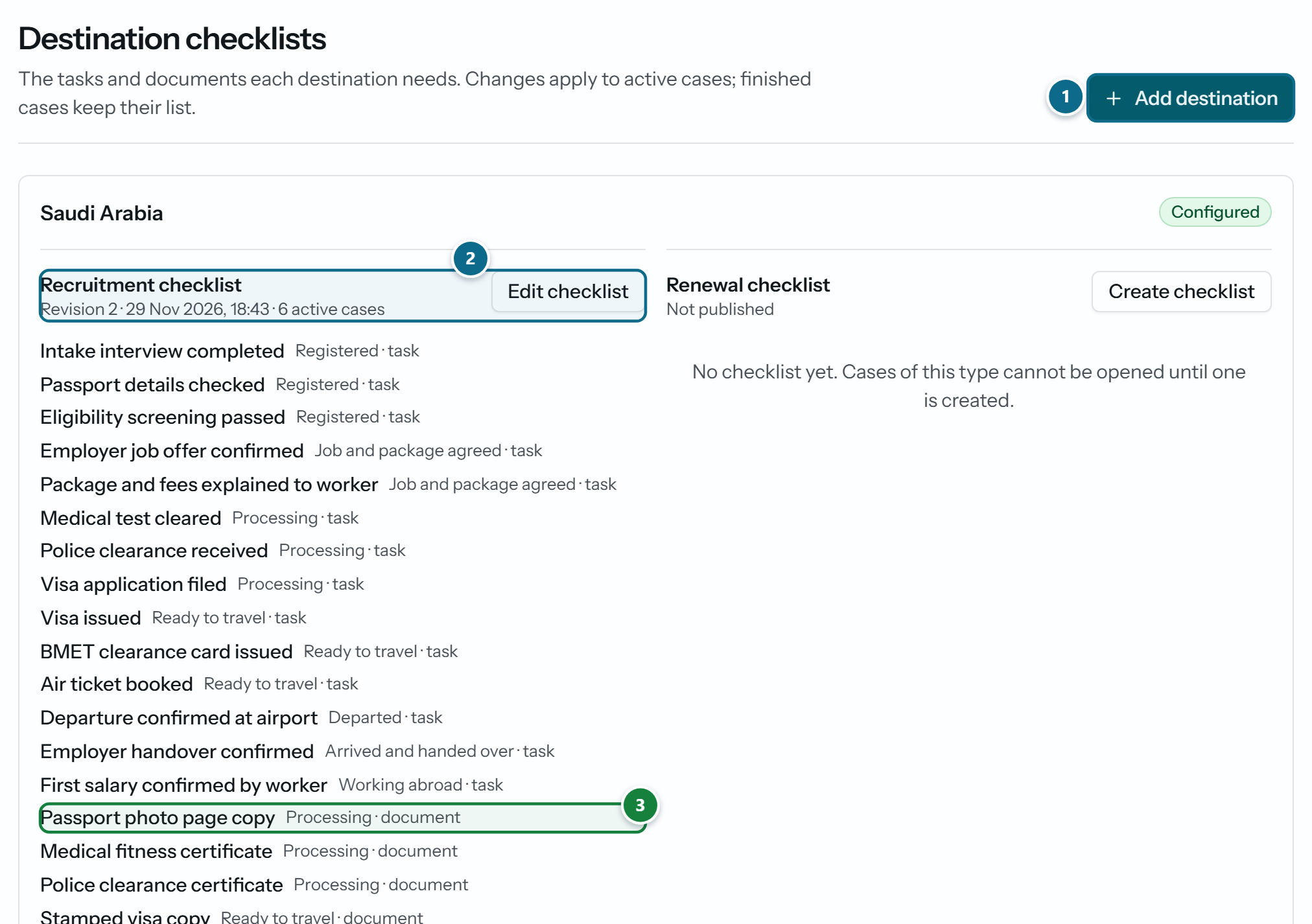
Every checklist item is either a Task (e.g. Medical test cleared — staff tick it done) or a Document (e.g. Passport photo page copy — automatically turns Done only after a file is uploaded, scanned clean, and verified).

What happens if you update a checklist later? Already closed or cancelled cases keep their original checklist frozen. Active cases automatically pick up newly added items—and if a new item belongs to an earlier stage, the system flags it so staff complete or waive it before moving the case forward.
Destination checklists page showing Saudi Arabia recruitment checklist tasks and documents Click to zoom

Destination Checklists

Define every requirement once—every case for that country follows the exact same steps.

  • 1Add destination: Add extra destination countries anytime beyond the built-in ones.
  • 2Edit checklist & revisions: Update Recruitment or Renewal checklists; old revisions stay saved in history.
  • 3Document vs Task items: Items marked document require a verified uploaded file before the case can advance past that stage.

3. Service Packages & Timed Offers

Setup → Packages

Packages standardize what you charge workers for each country. When staff prepare a service agreement for a worker, they pick an active package—so pricing and allowed payment plans stay consistent across branches.

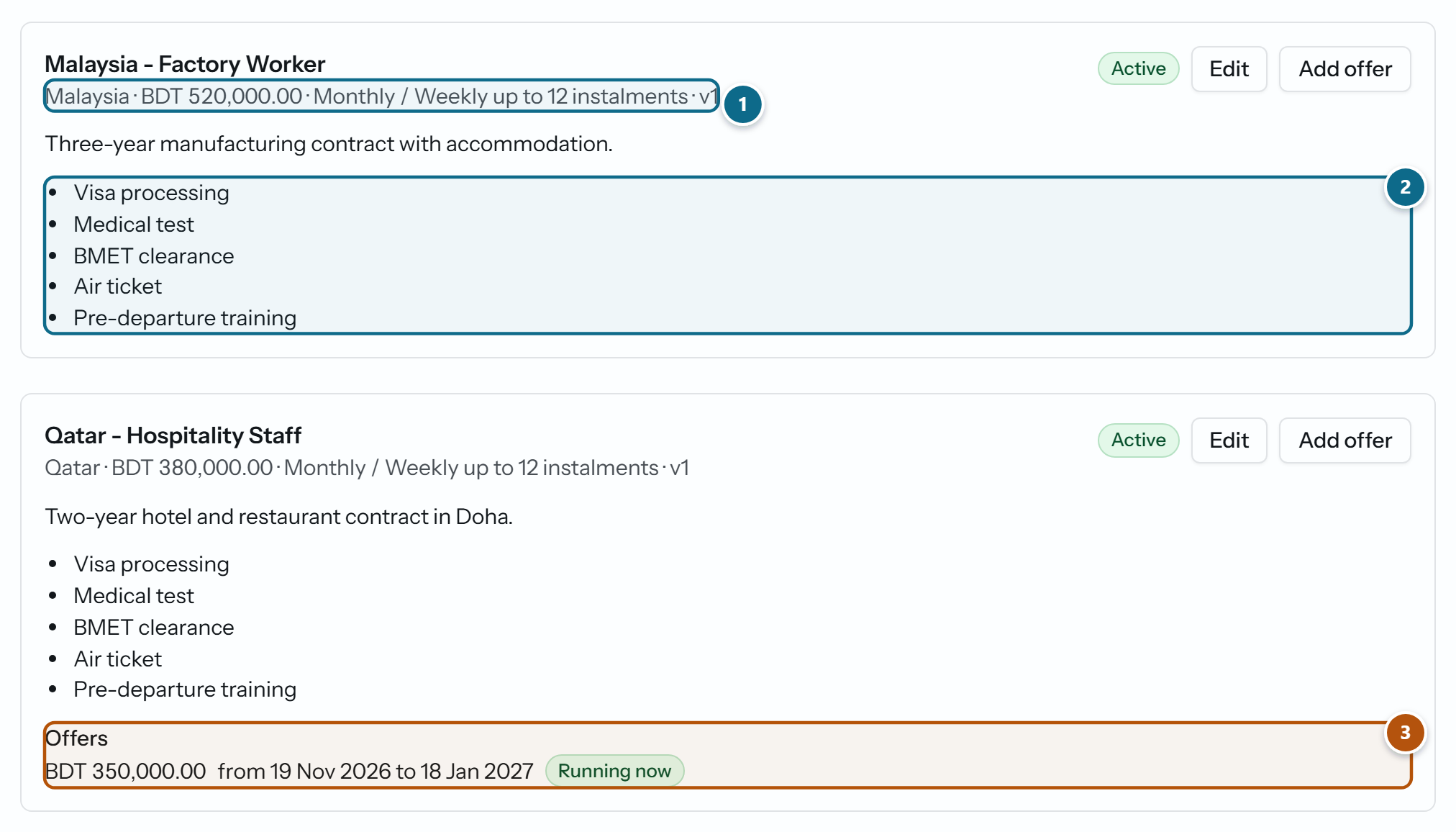
Service packages showing Malaysia and Qatar packages with active promotional offer Click to zoom

Packages & Running Promotions

Create standard pricing and time-limited discounts without affecting already-signed contracts.

  • 1Base price & payment rules: Shows the destination, full price, allowed frequencies (Monthly/Weekly), and max instalment count.
  • 2Included services: Clear bullet list printed onto the worker's package agreement PDF.
  • 3Timed offers: Use Add offer to set a promotional price between two dates; it shows Running now automatically while active.

4. Branches, Staff & Employers

People and places
  • Branches: Add your offices and short codes. You cannot disable a branch while active staff are still assigned to it—reassign or disable those staff first.
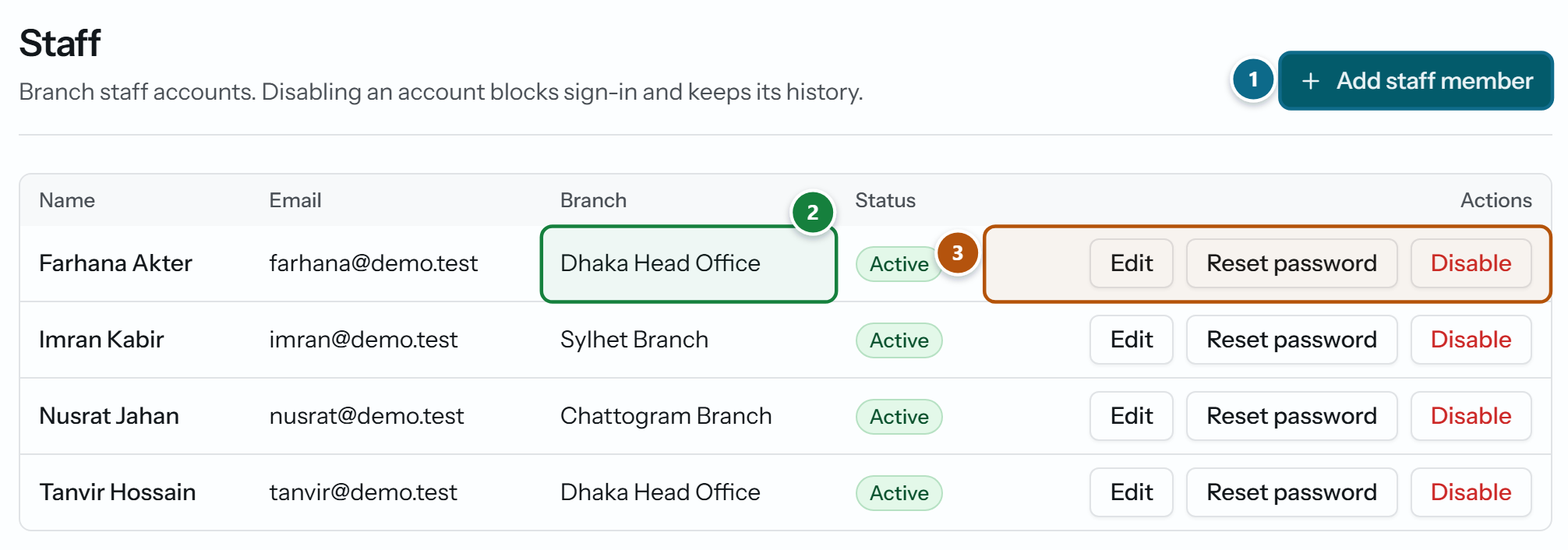
  • Staff: Create login accounts for your branch staff. Because public sign-up is turned off for security, staff cannot register themselves. If someone leaves, click Disable—this blocks their sign-in immediately while preserving every historical record they wrote.
  • Employers: Keep a shared agency directory of foreign employers (company name, country, contact person, phone, email) that staff can link to worker cases.
Staff management table showing Add staff member, branch assignment, and actions Click to zoom

Managing Branch Staff

Control who can sign in and which branch's workers they can access.

  • 1Add staff member: Create a new staff login with name, email, initial password, and branch.
  • 2Branch assignment: Each staff member sees only the workers and cases belonging to this branch.
  • 3Account actions: Edit their branch/details, reset a forgotten password, or disable access immediately.

5. Agency Settings, PDF Templates & Automatic Reminders

Setup
  • Agency settings: Set default Days before a late fee (grace period), late fee type (fixed amount or percentage), and customize dropdown categories for case expenses, office overhead, and cancellation deductions. Changes apply to new agreements only—existing signed agreements never change.
  • Document templates: Edit the title and text for all 7 official PDF types (Agreement, Bill, Official receipt, Payment acknowledgement, Refund receipt, Settlement statement, Amendment). You can Preview the layout with sample data before saving a new revision.
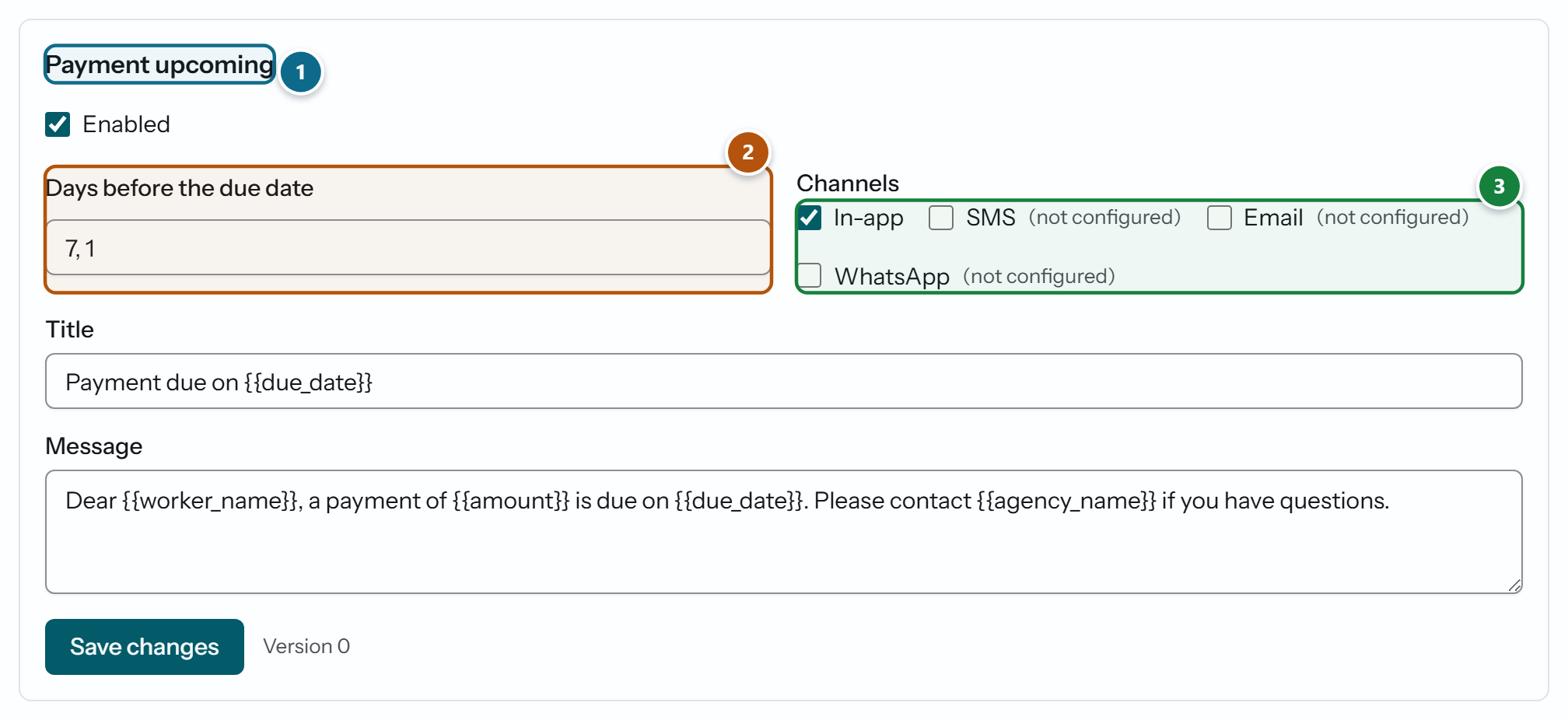
  • Reminder rules: Turn automatic daily alerts on or off for upcoming payments, overdue payments, passport expiry, work permit expiry, medical tests, appointments, and document review results.
Reminder rules configuration card showing timing offsets, channels, and message template Click to zoom

Automatic Reminder Rules

Checked automatically every morning at 07:00 so workers never miss a due date or test.

  • 1Reminder type & toggle: Enable or pause each reminder (e.g. Payment upcoming, Passport expiry, Medical test).
  • 2Timing (days): Enter comma-separated day offsets—for example 7, 1 sends a reminder 7 days before and 1 day before due date.
  • 3Channels: Worker portal inbox (In-app) always works; SMS, Email, and WhatsApp light up once your external providers are connected.

6. Bringing In Existing Workers (Spreadsheet Imports)

Admin tools → Imports

If your agency already has workers tracked in Excel before launching this system, go to Admin tools → Imports:

  1. Upload & preview: Upload your .xlsx or .csv file with a cut-off date. The system checks every row without saving anything yet.
  2. Fix any errors: If a phone number, passport, or branch name has a typo, download the error report CSV, fix your spreadsheet, and upload a replacement file.
  3. Commit safely: Once errors are zero, click Commit. Everything is imported cleanly in one safe step—never half-saved.
Owner & Admin Guide

Your Role: Agency Admin

How to monitor all branches at a glance, clear your Approvals Inbox, verify payments and expenses, run financial reports, and message workers.

1. Your Daily Command Center (Dashboard)

Dashboard

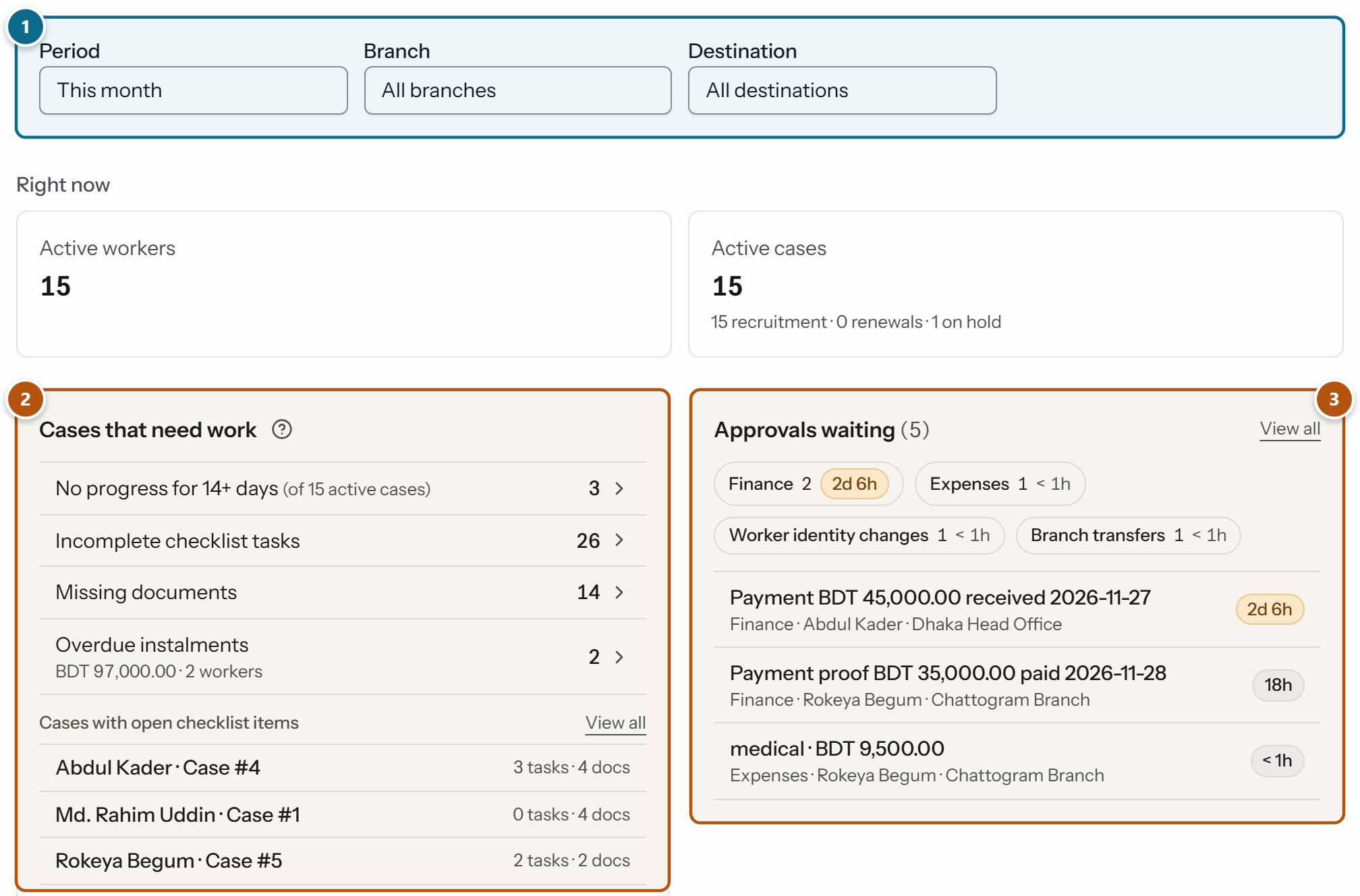
Every morning, start on the Dashboard. It puts urgent operational bottlenecks at the top and agency-wide financial numbers right below:

Admin Dashboard top filters, Cases that need work card, and Approvals waiting card Click to zoom

Filters, Attention Flags & Waiting Approvals

Spot stuck cases and oldest waiting approvals in seconds.

  • 1Filters: Switch between This month, Last 30 days, or custom dates, and narrow down by a specific Branch or Destination.
  • 2Cases that need work: Click any row to jump directly to cases stuck 14+ days with no progress, incomplete tasks, missing documents, or overdue instalments.
  • 3Approvals waiting: Shows total requests awaiting your decision, grouped by category with wait times highlighted in amber once older than 48 hours.
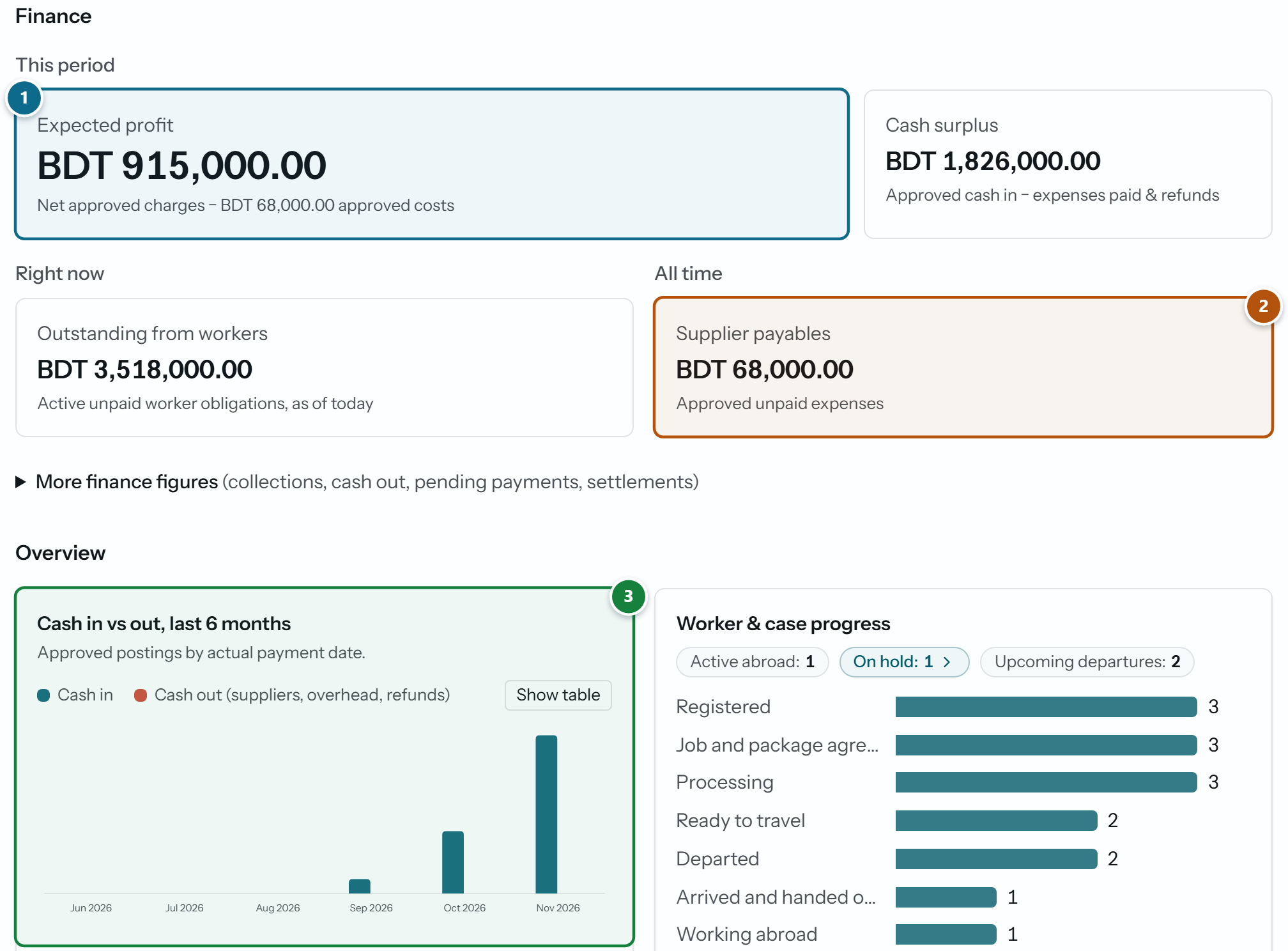
Admin Dashboard Finance tiles and 6-month Cash in vs out bar chart Click to zoom

Admin-Only Financial Pulse & 6-Month Cash Trend

Branch staff never see these profit, cost, or payable numbers—only Agency Admins see them.

  • 1Expected profit & Cash surplus: Operational charges minus approved costs, plus net cash collected minus supplier payouts and refunds.
  • 2Supplier payables & Worker outstanding: Total unpaid money owed by workers and total approved bills owed to suppliers/vendors.
  • 36-month Cash chart & Branch breakdown: Visual cash trend (with a Show table toggle), followed further down by a per-branch comparison table.

2. Approvals Inbox & Verifying Payments

Approvals & Finance

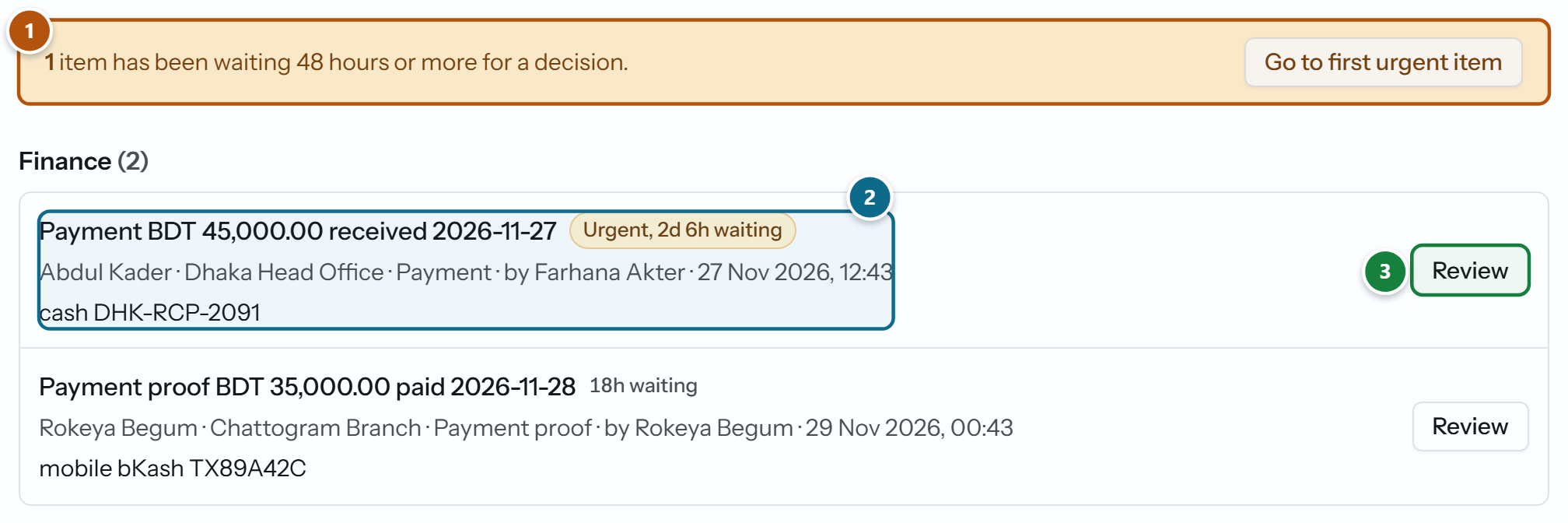
All requests from branch staff and payment slips from workers flow into one organized Approvals page. Every item waiting 48 hours or more triggers a clear amber banner at the top with a Go to first urgent item button.

The 8 things that come to your Approvals Inbox:

  1. Finance: Branch-entered payments, worker-uploaded payment proofs (bKash/bank slips), staff-entered incident bills, agreement amendments, and cancellation settlements.
  2. Expenses & Supplier Payments: Case costs (air tickets, medicals, visas) and branch overhead submitted by staff.
  3. Worker Identity Changes: Requests to correct a worker's legal name, date of birth, or passport details.
  4. Assisted Phone Changes: When a worker lost their phone and visited a branch in person to switch numbers.
  5. Assisted Password Resets: Same-phone password reset verified in person (must be approved by an Admin other than the requester).
  6. Renewal Requests: Opening a renewal case for a worker who still owes a balance.
  7. Case Cancellations: Staff requests to cancel a case (approving freezes the case and opens a Settlement calculation).
  8. Branch Transfers: Requests to move a worker and their active cases to another branch.
Approvals inbox showing 48-hour urgent alert banner and pending Finance items with Review button Click to zoom

Approvals Inbox

Everything waiting for your sign-off across all branches in one queue.

  • 148-hour urgency alert: Automatically flags items waiting two days or longer so nothing gets forgotten.
  • 2Full context at a glance: Shows worker name, branch, payment method/reference, who submitted it, and exact wait age.
  • 3Review button: Takes you directly to that item's page where you inspect evidence and Approve or Reject with a reason.
Payments queue filtered to Pending approval showing Approve and Reject buttons Click to zoom

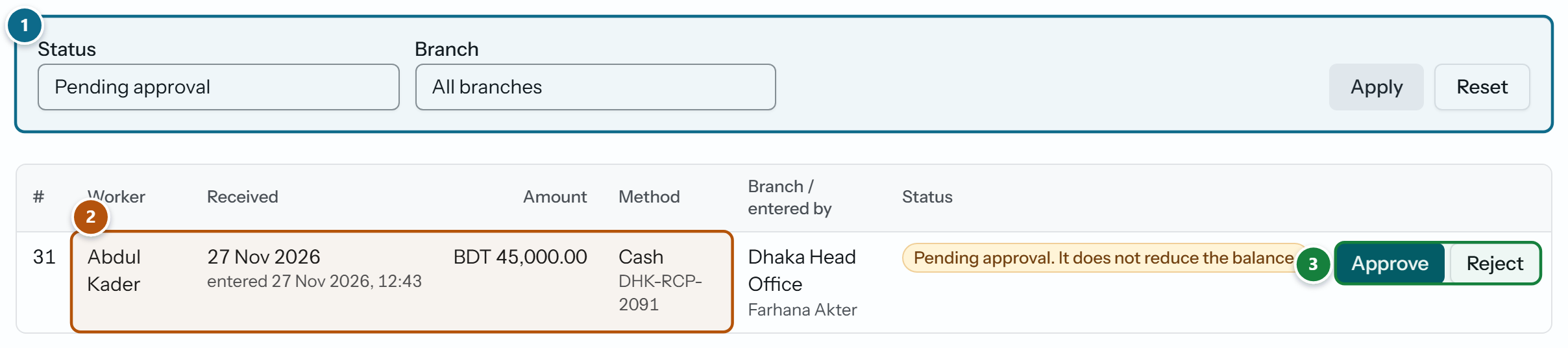
Verifying Payments (Finance → Payments)

Money recorded by branch staff never reduces a worker's debt until you click Approve.

  • 1Status & Branch filters: Filter to Pending approval across all branches or pick one branch to reconcile daily cash.
  • 2Payment details & badge: Clearly warns Pending approval. It does not reduce the balance until verified.
  • 3Approve or Reject: Approving allocates the money to the worker's bills immediately; rejecting requires a reason and keeps the history.
Refunds, Credit & Cancellation Settlements: If a worker overpays, the extra amount stays as Worker Credit (auto-applied to future bills, or refunded via Credit Refund with a downloadable receipt). If a case is cancelled, open Finance → Settlements to add any approved agency deductions (e.g. non-refundable visa/medical costs), post the settlement, and record whether a refund is due to the worker or a balance is still owed.

3. Financial Reports & Excel/CSV Exports

Admin tools → Reports

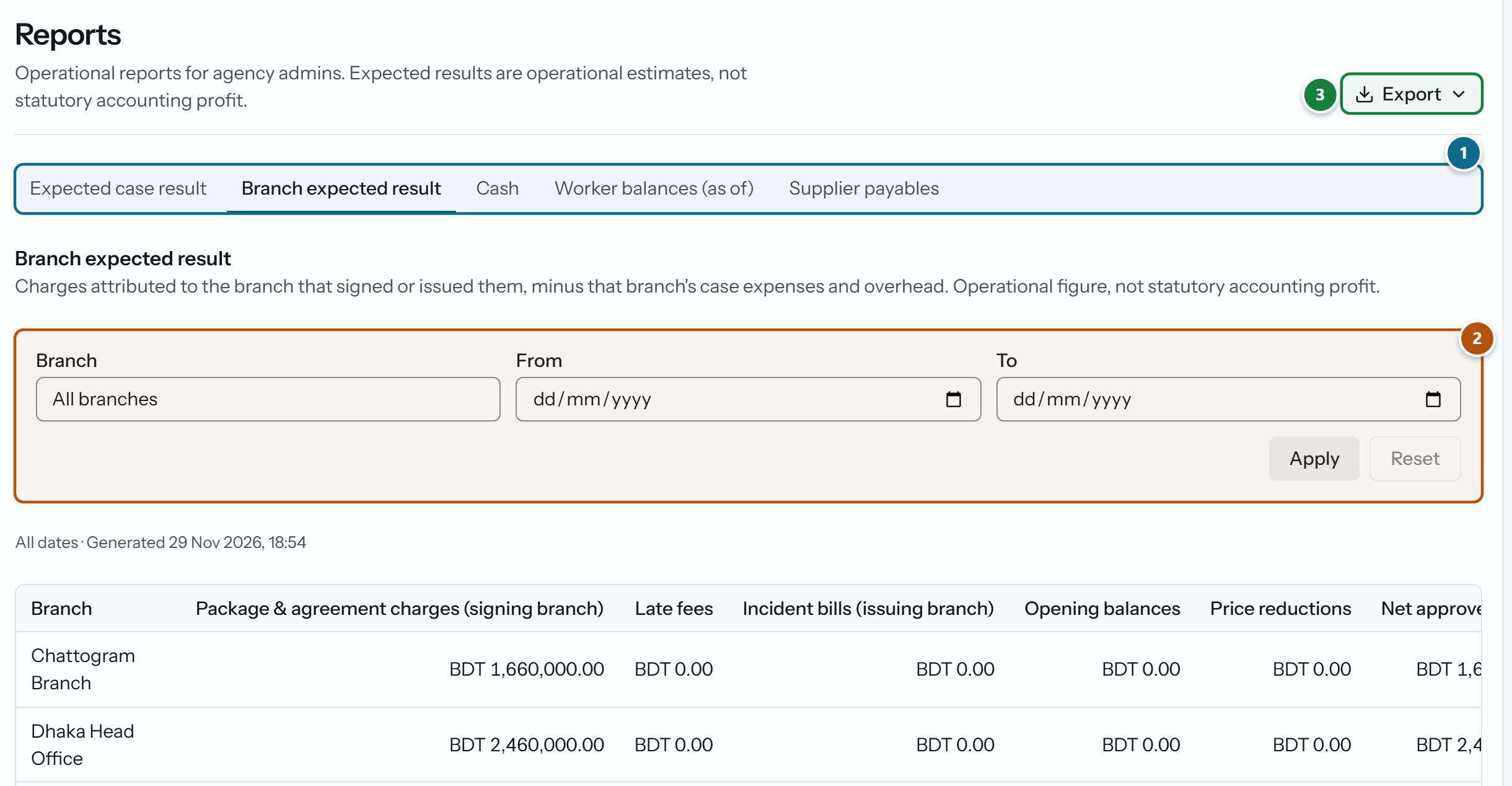
All 5 operational reports are Admin-only and export cleanly to Excel (.xlsx) or CSV with matching on-screen totals:

  • Expected case result: Package + extra charges minus approved case expenses for every case (overhead never touches individual cases).
  • Branch expected result: Package revenue stays attributed to the signing branch, incident bills go to the issuing branch, and expenses stay with the branch that incurred them—even if a worker transfers branches! Cross-branch collections are shown clearly.
  • Cash: Actual money in (approved worker payments) minus money out (approved supplier payments and credit refunds) by payment date.
  • Worker balances (as of): Exact collectible owed, overdue amount, and available credit for every worker on any chosen cut-off date.
  • Supplier payables: Total approved cost, amount paid, and remaining payable owed to each supplier/vendor.
Reports page showing 5 report tabs, branch/date filters, Export button, and branch table Click to zoom

Operational Reports & Exports

Switch reports, slice by branch and dates, and export for your accountant.

  • 15 report tabs: Switch instantly between Case result, Branch result, Cash, Worker balances, and Supplier payables.
  • 2Branch & Date filters: Filter to any branch or date window (or an "as of" cut-off date for historical balances).
  • 3Export dropdown: Download the exact filtered table with totals as an Excel (.xlsx) or .csv file.

4. Bulk Messaging, Audit Logs & Your Security

Admin tools & Settings

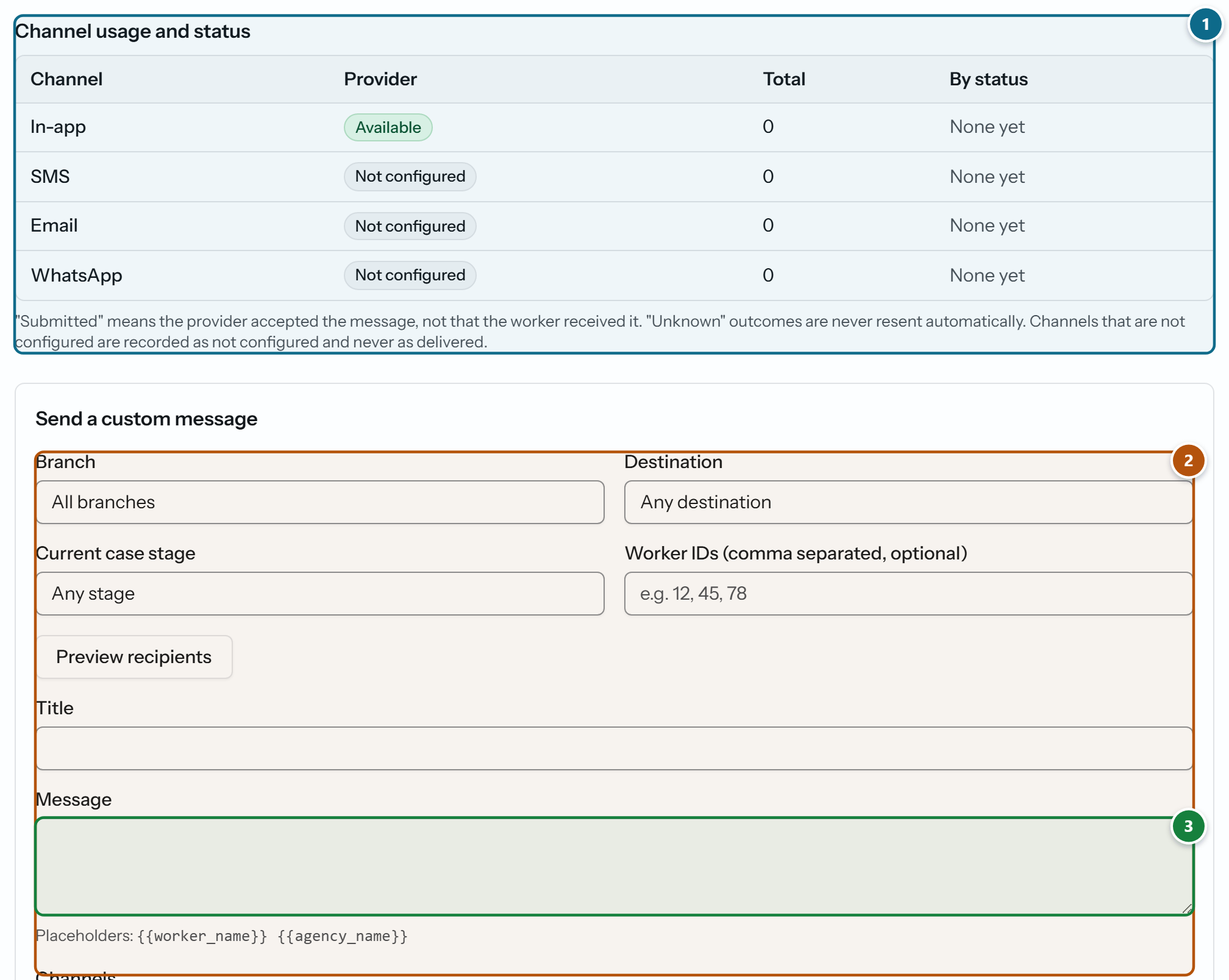
Use Admin tools → Messages to send announcements to groups of workers (for example, all workers in Chattogram currently in the Processing stage for Malaysia). You can preview the exact recipient count before sending, personalize messages with {{worker_name}}, and retry any failed deliveries from the delivery log.

Under Admin tools → Audit logs, you have a permanent read-only security log of sign-ins, password resets, and sensitive changes (exportable to CSV with passwords/tokens automatically redacted). We also recommend visiting your own Settings → Security menu to turn on Two-Factor Authentication (2FA) or a Device Passkey (fingerprint/PIN).

Messages console showing channel availability table and targeted custom message form Click to zoom

Bulk Messaging Console

Reach the right group of workers without guessing who will receive it.

  • 1Channel status: Shows clearly whether In-app, SMS, Email, and WhatsApp are active or not configured yet.
  • 2Audience targeting: Filter by Branch, Destination, Stage, or specific Worker IDs—then click Preview recipients to check the count.
  • 3Personalized message: Write your announcement using {{worker_name}} and {{agency_name}} placeholders.
Branch Staff Handbook

Your Team: Branch Staff

Everything your branch staff do every day—registering walk-in workers, tracking cases, verifying documents, collecting payments, and assisting customers in person.

1. Registering a Worker & Passport Auto-Fill

Workers → Register

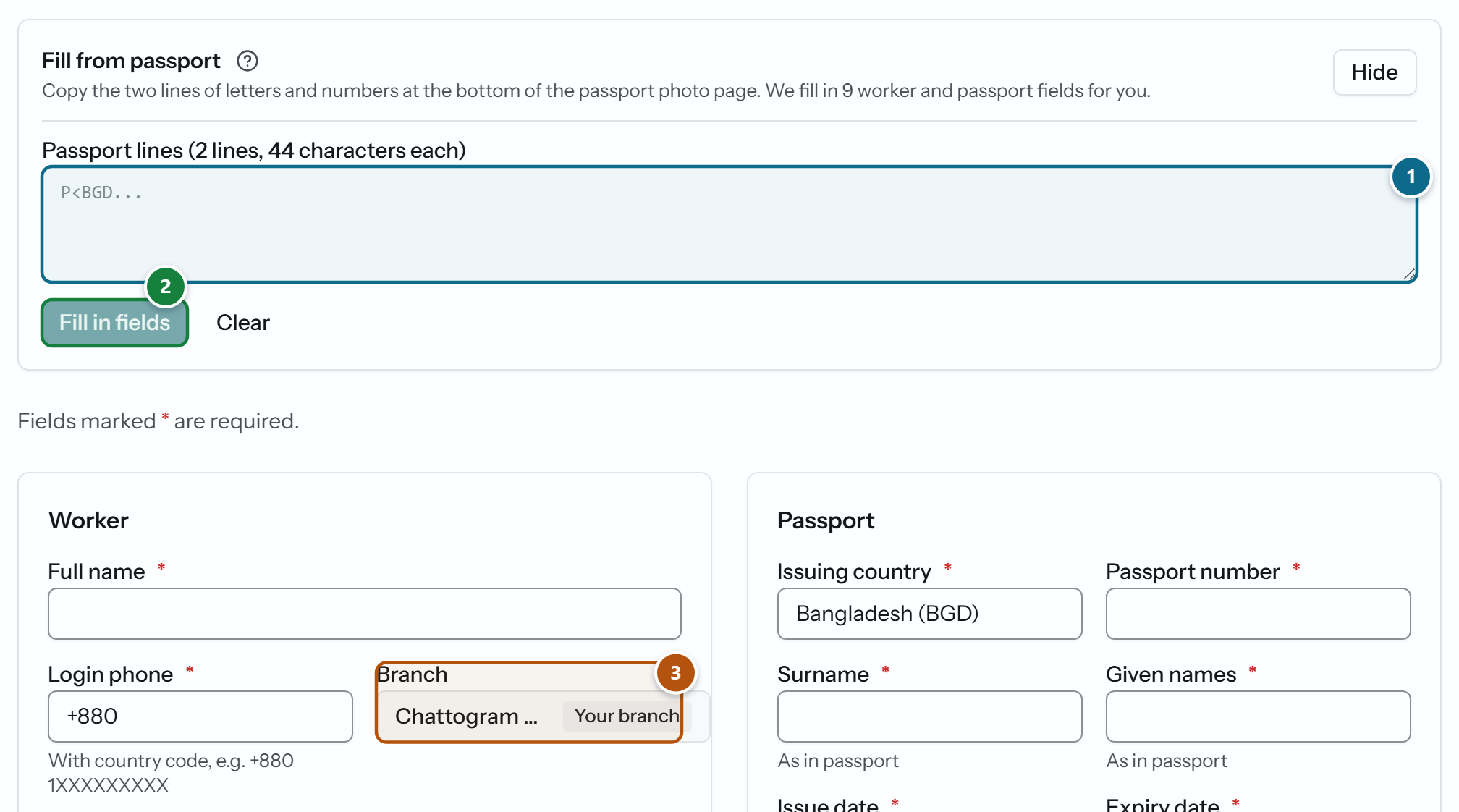
When a new worker walks into a branch desk, staff open Workers → Register worker. Instead of typing everything manually, they can click Paste passport lines and copy the two lines of letters and numbers from the bottom of the passport photo page—9 identity and passport fields fill in automatically.

  • Duplicate passport protection: If that passport is already registered in your branch, the form links straight to the existing worker. If it belongs to another branch, the system keeps that worker's details private and prompts staff to submit a Branch Transfer request by passport instead.
  • Automatic SMS activation: Submitting creates the worker account in Pending status and sends an SMS verification code to their mobile number so they can set their own password.
Register worker screen showing Paste passport lines auto-fill and locked branch Click to zoom

Registering a Worker with Passport Auto-Fill

Fast, accurate intake with built-in branch isolation.

  • 1Paste passport lines: Paste the 2-line code from the bottom of the passport photo page.
  • 2Fill in fields: Automatically checks digits and fills full name, DOB, gender, nationality, passport number, and dates.
  • 3Locked to staff's branch: Staff automatically register workers into their own branch (only Admins pick a branch).

2. The Worker Profile Hub

Workers → Profile

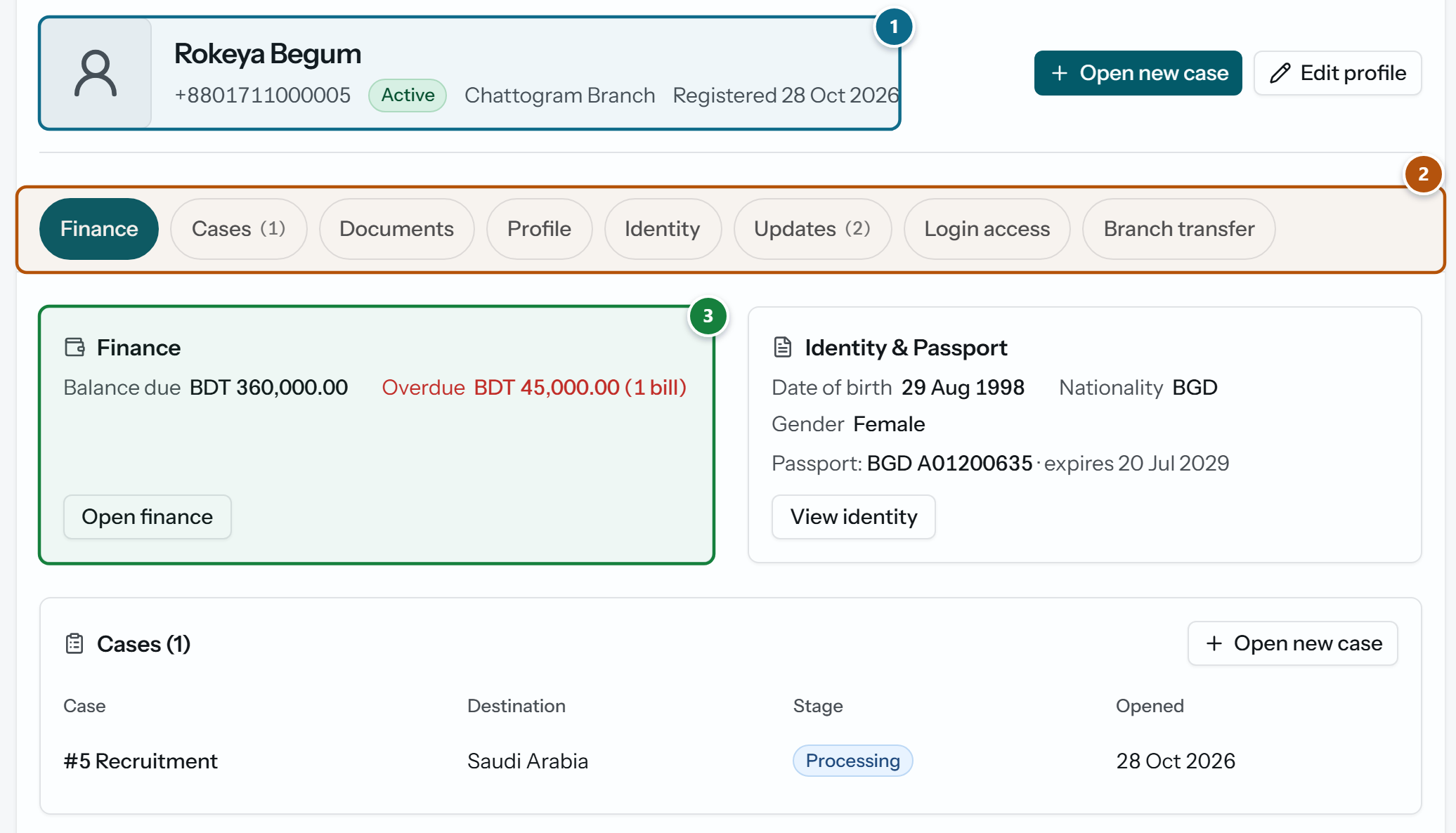
Clicking any worker opens their complete profile hub. Staff can post Updates visible in the worker's phone portal, open a new Recruitment or Renewal case, view or issue official PDFs (and upload scanned signed copies), request an Identity change (for Admin approval), resend an expired SMS activation code, or disable a worker's login.

Worker profile page showing header details, section jump tabs, finance summary, and cases list Click to zoom

Worker Profile Hub

One organized screen for everything related to one worker.

  • 1Status & actions: Shows phone, active/pending status, branch, and quick buttons to Open new case or Edit profile.
  • 2Sticky section pills: Jump cleanly between Finance, Cases, Documents, Profile, Identity, Updates, Login access, and Branch transfer.
  • 3Finance & Cases summary: Shows live balance due, overdue bills, and links directly to the worker's Finance ledger and Cases.

3. Moving Cases Forward & Managing Checklists

Cases → Case Detail

Inside a case, staff work through the destination checklist stage by stage:

  • Completing tasks: Tick task items done with a short reason. Document items cannot be ticked manually—they turn Done automatically once a verified document is on file.
  • Stage transitions: Once every item in the current stage is done (or waived by an Admin), click Request next stage to advance. A case cannot be closed while the worker still owes a collectible balance or while on hold.
  • Holds, Notes, Deadlines & Placements: Staff can place a case On hold (tasks and document uploads still work while held, but stage advances wait until resumed), add Internal notes (private to staff—never shown to workers), link an Employer & Job placement, and track Work permit expiry, medical dates, and appointments (which feed automatic reminders!).
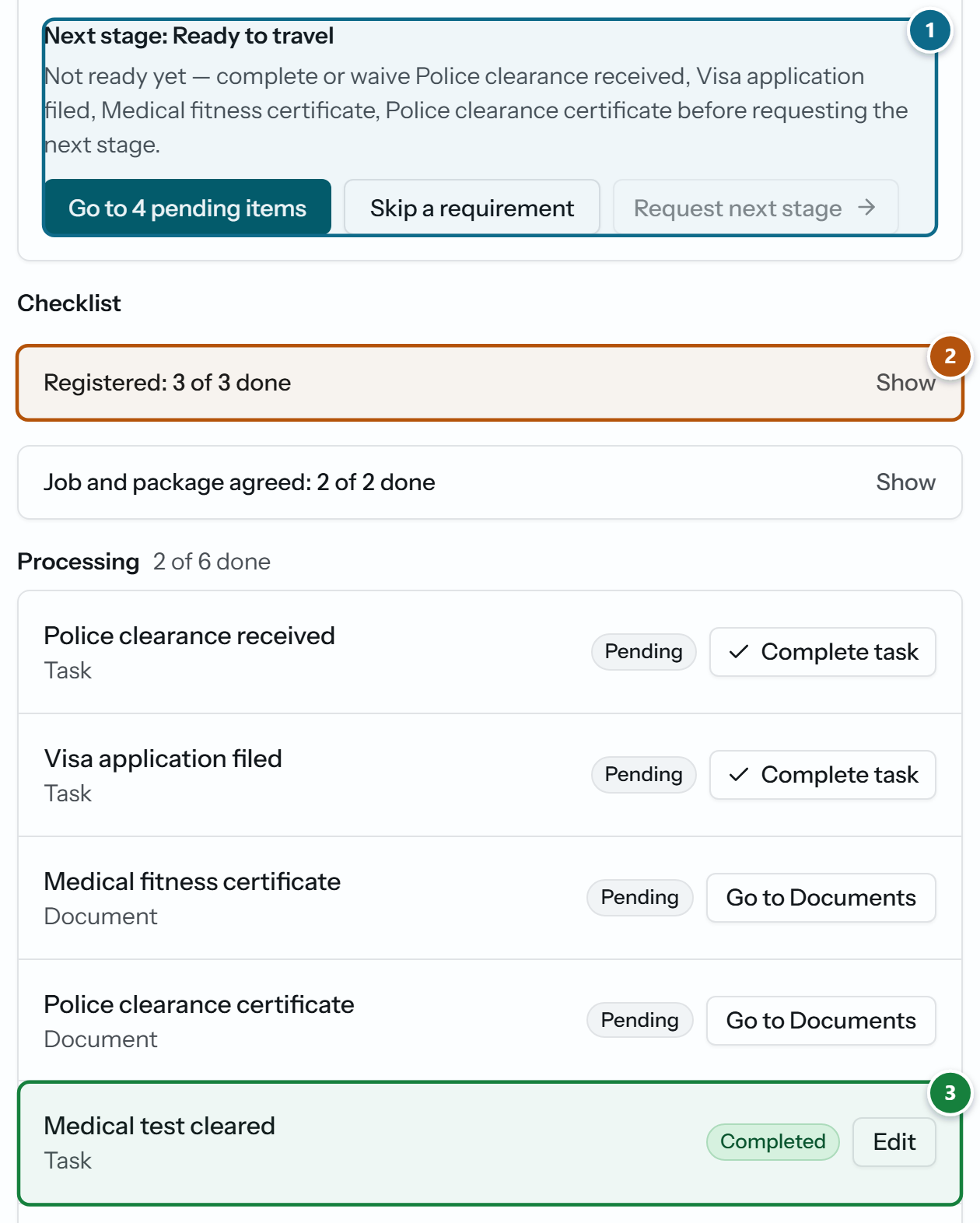
Case detail showing Next stage banner, collapsed past stages, and Processing checklist items Click to zoom

Case Progress & Checklist

Clear guardrails show exactly what is blocking the next stage.

  • 1Next stage panel: Lists remaining blocking items, lets you jump straight to them, request an Admin waiver, or advance once ready.
  • 2Completed stage groups: Earlier completed stages stay neatly collapsed so staff focus on the active stage.
  • 3Task vs Document items: Tasks show Complete task / Edit buttons; document items show Go to Documents.

4. Uploading, Scanning & Sharing Case Documents

Case Detail → Documents

Both branch staff and workers (when self-upload is enabled) can upload PDF, JPEG, or PNG files up to 5 MB. Every file goes into private quarantine first:

  1. Safety scan: An Admin or automated scanner checks the file for malware. Only Clean files can be downloaded or verified.
  2. Business review: Staff click Review file to mark it Verified (which automatically completes that checklist requirement!) or Rejected with a clear reason (which sends an alert to the worker to upload a better copy).
  3. Worker visibility toggle: Files uploaded by staff start hidden from the worker by default. Click Worker-visible: Off / On anytime to share or hide a file from the worker's phone portal.
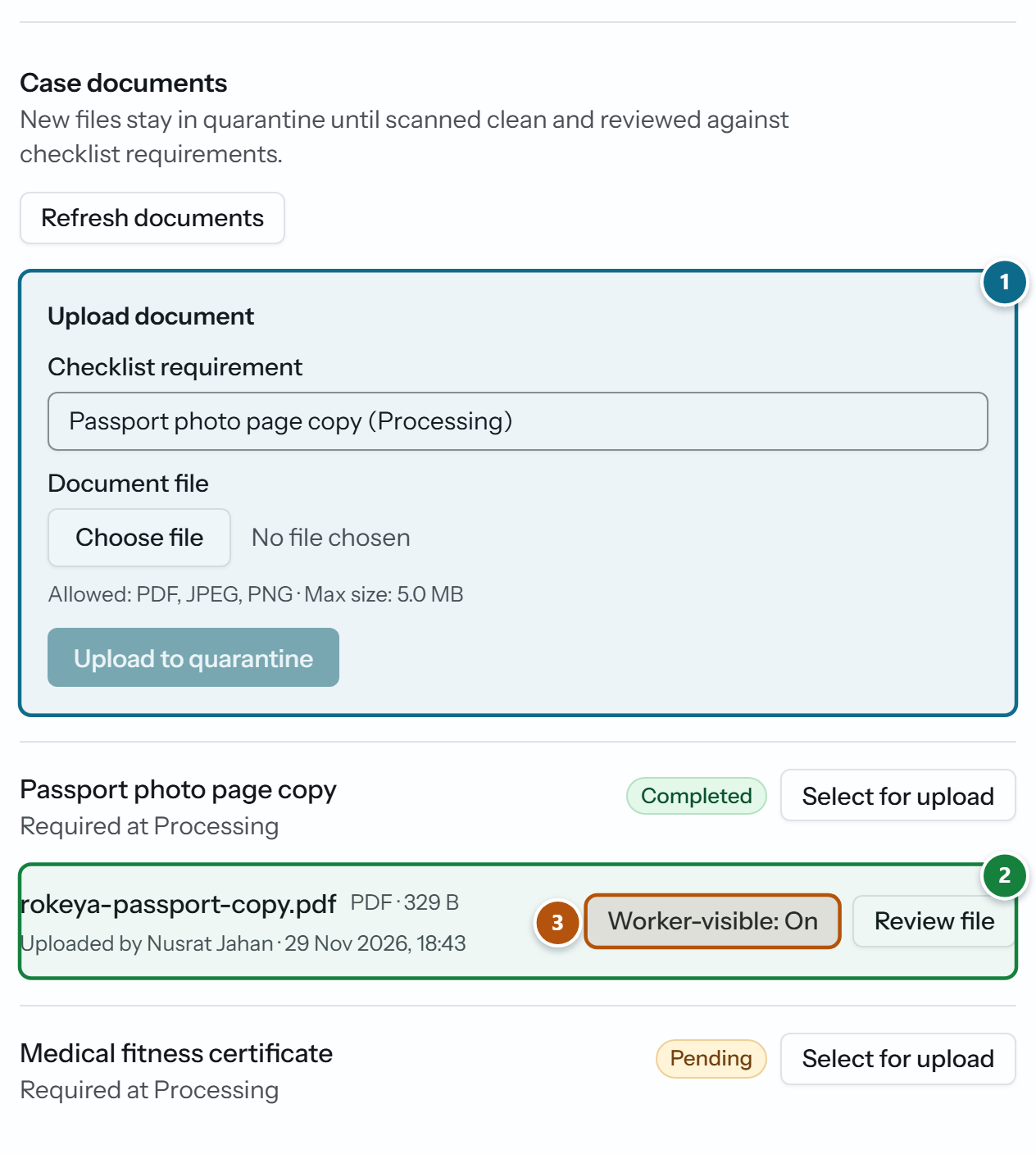
Case documents panel showing upload form, verified passport file, Worker-visible toggle, and Review button Click to zoom

Case Documents Panel

Every document is scanned, reviewed, and visibility-controlled.

  • 1Upload form: Pick the checklist requirement, choose a PDF/JPEG/PNG file, and upload safely to quarantine.
  • 2Uploaded file record: Shows file size, who uploaded it, safety status, and the Review file button.
  • 3Worker-visible toggle: One click controls whether the customer can see and download this file in their portal.

5. Branch Finance, Transfers & Helping Walk-In Customers

Worker Finance & Support
  • Agreements & Desk Payments: On a worker's Finance page, staff prepare package agreements (or opening-balance instalment plans) and record cash/bank/mobile/card payments. Staff-recorded payments stay Pending approval until an Admin approves them—meanwhile, staff can issue a Payment acknowledgement PDF (clearly marked not an official receipt yet).
  • Expenses: Staff submit case or branch expenses with optional receipt photos via Finance → Expenses. They see only their own submissions (never agency profit) and wait for Admin approval.
  • Branch Transfers: Request to transfer a worker to another branch from their profile or from Transfers. When approved, active cases and unpaid bills move to the new branch, while the old branch retains read-only access to the receipts and records it created.
  • Lost phone or forgotten password (in-person help): If a worker loses their phone number or forgets their password and cannot receive SMS recovery, staff verify their original ID document in person and submit an Assisted phone change or Assisted password reset from the worker's profile (requiring Admin approval).
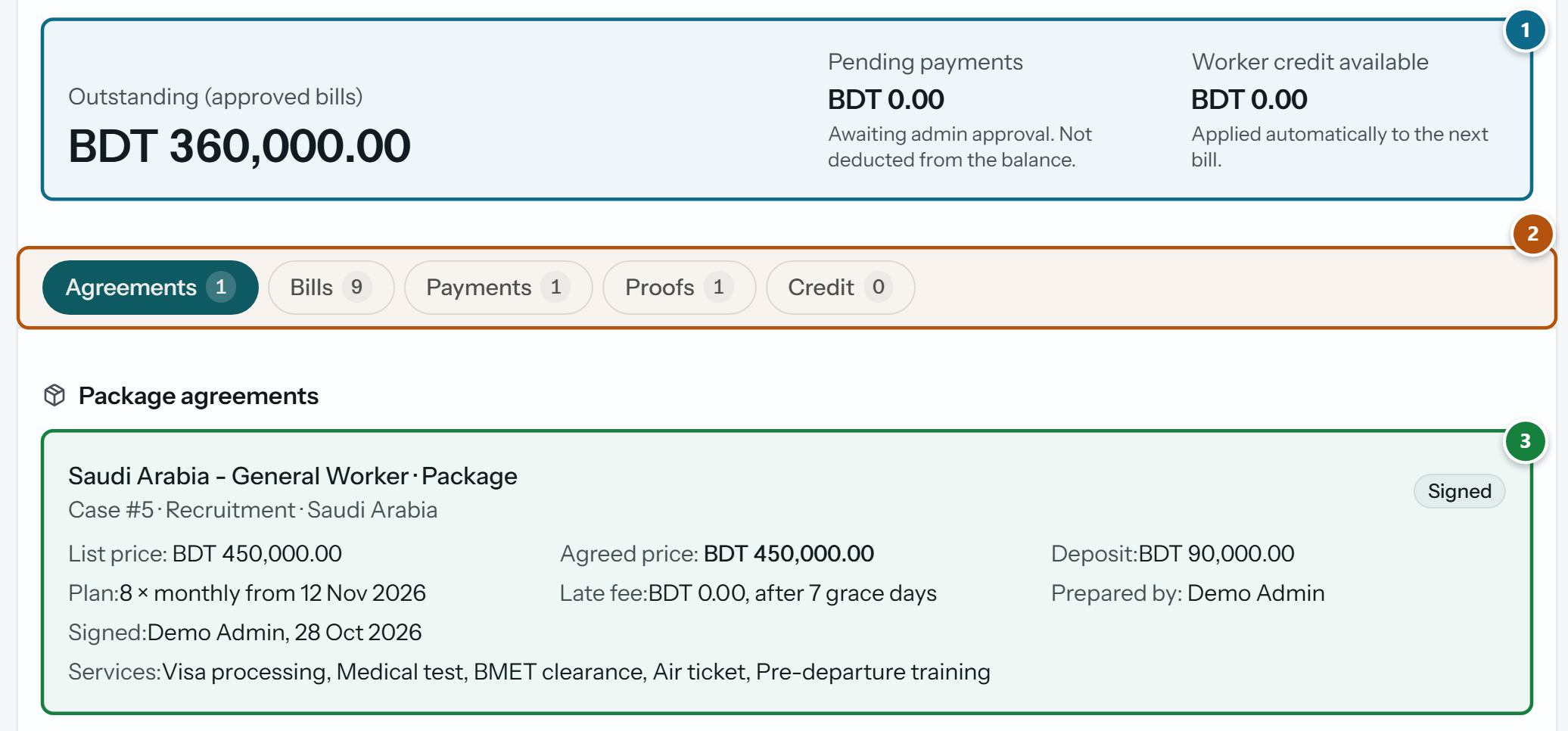
Worker Finance account showing balance summary tiles, section navigation pills, and signed package agreement card Click to zoom

Worker Finance Ledger

Clear separation between approved balances and pending-approval items.

  • 1Balance summary: Shows approved outstanding balance, pending payments waiting for Admin approval, and available worker credit.
  • 2Section tabs: Jump between Agreements, Bills, Payments, Proofs (customer-uploaded slips), and Credit.
  • 3Package agreement card: Shows agreed price, deposit, instalment schedule, late-fee terms, and who prepared/signed it.
Customer Experience

Your Customers: The Worker Portal

Designed mobile-first so every worker can check their case, upload clear document photos, send payment proofs, and download official PDFs right from their phone.

1. How Workers Activate & Sign In

First-Time & Returning
Step 1 · Registration

Branch Registers Worker

Your staff register the worker at the desk. The worker receives an SMS verification code on their phone.

Step 2 · Activate

Set Own Password

The worker opens the Worker portal → Activate account, enters their phone number + SMS code, and chooses a password.

Step 3 · Daily Use

Sign In Anytime

Returning workers sign in with their mobile number and password. If forgotten, they can reset via SMS—or visit the branch for lost-phone help.

2. Tracking Progress & Uploading Documents on Phone

Home & My Cases

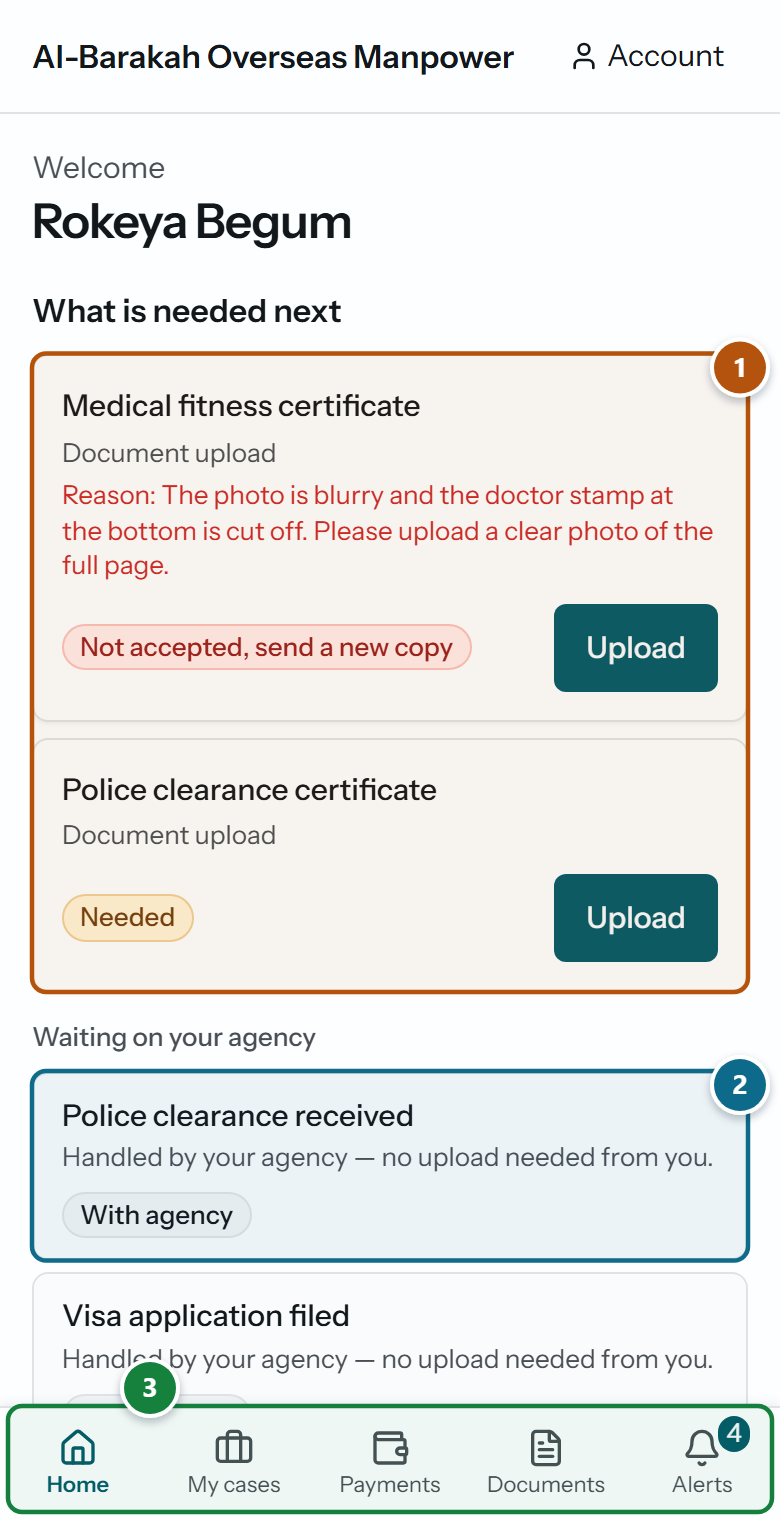
The moment a worker opens Home on their phone, they never have to guess what to do—rejected or missing documents appear right at the top under What is needed next with a single-tap Upload button. Everything the agency is handling sits calmly below under Waiting on your agency.

Worker portal mobile Home screen showing What is needed next, Waiting on your agency, and bottom navigation bar Click to zoom

Worker Mobile Home Screen

Built for clarity on a small phone screen, with plain-language status badges.

  • 1What is needed next: Shows any rejected copy (with the exact agency reason in red) or missing document with a big Upload button.
  • 2Waiting on your agency: Reassures the worker that agency-handled tasks need no upload from them.
  • 3Thumb-friendly bottom menu: Switch between Home, My cases, Payments, Documents, and Alerts (with unread badge).
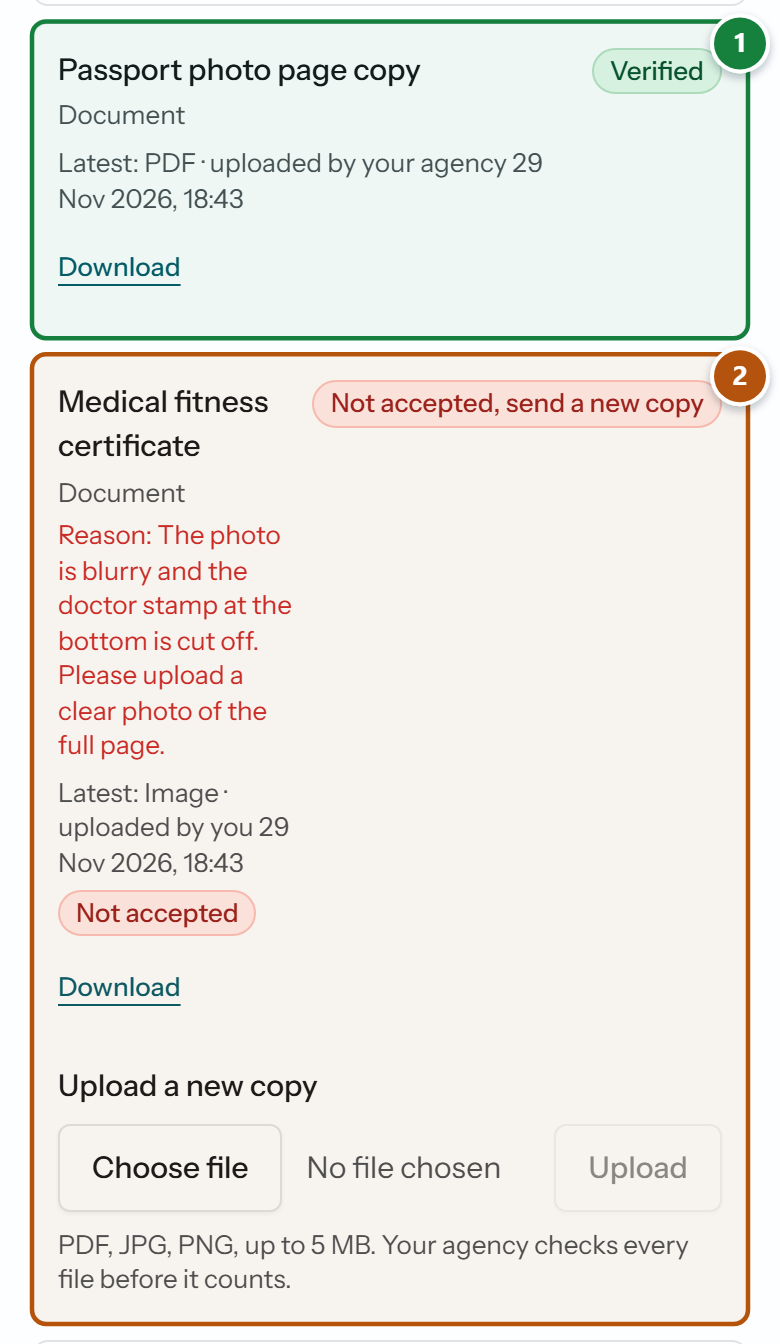
Worker case checklist on mobile showing Verified document download and Rejected document with re-upload form Click to zoom

Uploading & Checking Documents (My cases)

Workers always know whether a file was verified, still being checked, or needs a clearer photo.

  • 1Verified document: Shows a green Verified badge and a Download link once staff approve a shared file.
  • 2Rejected copy & re-upload: Explains why it was not accepted (e.g. blurry scan) and gives a built-in Choose file → Upload box right underneath.

3. Checking Balances, Sending Payment Slips, Official PDFs & Alerts

Payments, Documents & Alerts
  • Payments & Payment Proofs: Workers view their exact balance left to pay, overdue warning, instalment due dates, and signed agreements. They can tap Send payment proof to upload a photo/PDF of a bKash, bank, or cash slip—with a clear notice that it waits for agency approval before reducing their balance.
  • My Documents (Official PDFs): Lists official agreements, bills, receipts, refund receipts, settlement statements, and amendments shared by the agency (plus uploaded signed copies). Pending-payment acknowledgements are clearly highlighted as awaiting approval.
  • Alerts Inbox & Account: Shows reminders and notifications (payment approvals/rejections, document reviews, upcoming due dates, biometrics appointments, and branch announcements), plus their masked phone number and full timeline of agency updates.
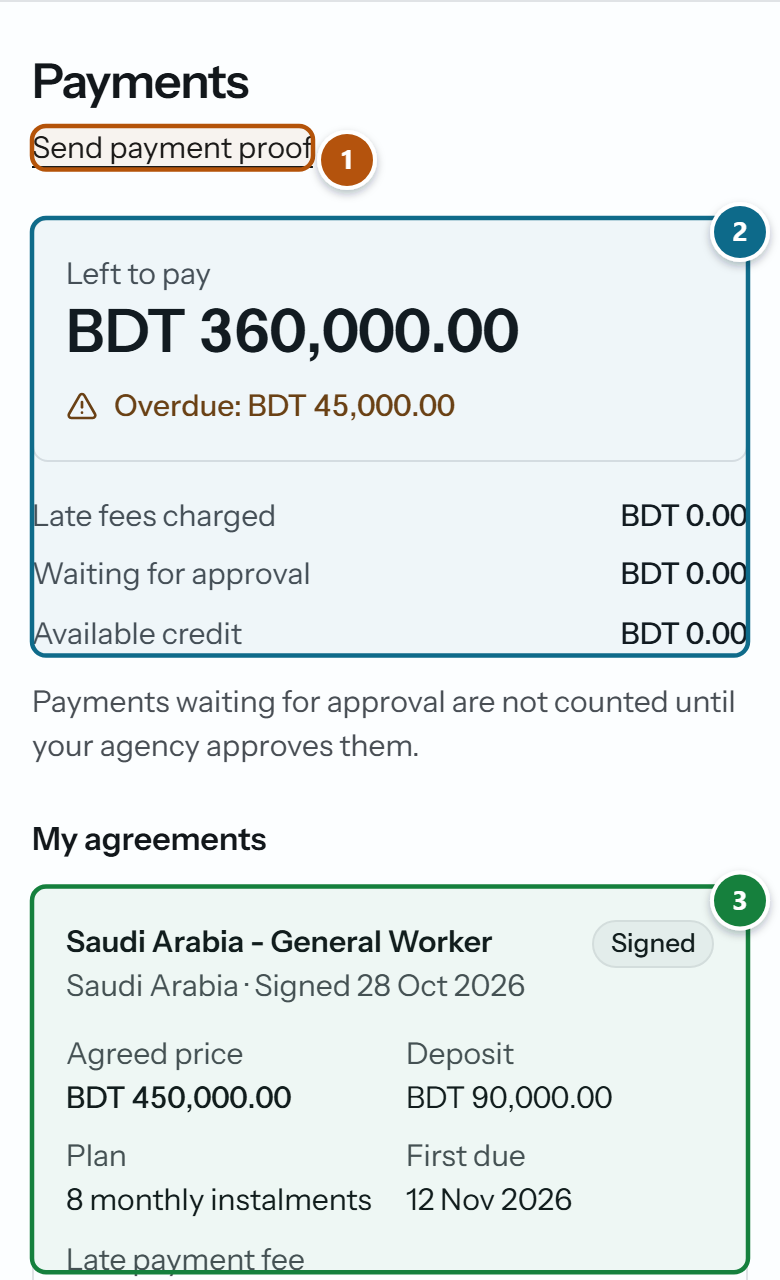
Worker Payments screen on mobile showing Send payment proof link, Balance summary, and Signed agreement Click to zoom

Worker Payments Screen

Transparent numbers so workers always know what they owe, what is overdue, and what is waiting for review.

  • 1Send payment proof: Jumps straight to the slip upload form (amount, date, method, transaction ref, and photo/PDF).
  • 2Balance summary: Shows Left to pay, any Overdue amount, late fees charged, waiting approvals, and available credit.
  • 3My agreements: Displays the signed package, deposit, monthly/weekly instalment plan, and late-fee rules.
Quick Reference

End-to-End Workflows & Cheat Sheet

Visual step-by-step journeys, status badge meanings, and answers to the questions agency owners ask most often.

1. The Case Stage Journey

Case Lifecycle

Standard Recruitment Case (8 stages): Cases move one step forward at a time after all items in the current stage are completed or waived by an Admin.

Stage 1RegisteredWalk-in intake & passport check
Stage 2Job & package agreedEmployer offer & signed agreement
Stage 3ProcessingMedical, police clearance & visa filing
Stage 4Ready to travelVisa, BMET card & air ticket
Stage 5DepartedConfirmed at airport departure
Stage 6Arrived & handed overEmployer handover abroad
Stage 7Working abroadActive placement & first salary
Stage 8CompletedAll requirements & dues cleared

Contract Renewal Case (4 stages): Renewal opened → Processing → Renewed → Completed. (If the worker still owes a collectible balance, opening a renewal goes to the Admin's Approvals Inbox first.)

2. How Money, Proofs & Approvals Flow

Finance Flow
Step 1Agreement SignedCreates deposit + instalment bills
Step 2Payment MadeWorker sends slip online OR staff records at desk
Step 3Pending ApprovalBalance does NOT drop yet; appears in Admin inbox
Step 4Admin ApprovesBalance drops, credit/late fees update, official receipt ready

If a case is cancelled mid-way: Staff submit a cancellation request → Admin approves it → Case moves to Cancelled and opens a Settlement where Admin records any deductions and determines the final refund or owed amount.

3. How Document Safety & Review Flow

Documents Flow
Step 1UploadStaff or worker uploads PDF / JPG / PNG into private quarantine
Step 2Safety ScanFile is scanned; unsafe files are blocked automatically
Step 3Staff ReviewStaff inspect the clean file: Verified or Rejected with reason
Step 4Checklist DoneVerified completes the requirement; Rejected alerts worker

4. Status Badge Quick Reference

Glossary
Badge Shown Where It Appears What It Means in Plain English
14+ days no progress Cases list & Dashboard An open case has stayed in the same stage for 14+ days (turns red at 30+ days).
Pending approval Payments & Approvals Recorded by staff or submitted by worker, waiting for Admin approval. Has not reduced the balance yet.
Urgent, 2d+ waiting Approvals Inbox An approval request has waited 48 hours or more and needs Admin attention.
Sent, being checked Worker Portal (Docs) The worker uploaded a file and it is awaiting safety scan or agency review.
Not accepted, send a new copy Worker Portal (Docs) Staff rejected the file and wrote a reason; the worker should upload a clearer copy.
Verified / Completed Cases & Worker Portal Document verified or all checklist & payment requirements finished.
On hold Cases & Worker Portal Case is paused with a reason. Tasks and document uploads still work, but stage advances wait until resumed.

5. Frequently Asked Questions

FAQ
Why didn't a payment reduce the worker's balance right away?
When a Branch Staff member records a payment or a worker uploads a payment slip, it enters Pending approval status. Once an Agency Admin clicks Approve (under Approvals or Finance → Payments), the balance updates immediately and an official receipt can be issued. (Payments entered directly by an Admin are approved immediately.)
Can Branch Staff see my agency profit, expenses, or other branches' workers?
No. Branch Staff only see workers and cases assigned to their own branch. They never see expected profit, cash surplus, supplier payables, other staff members' expenses, or financial reports.
What happens if a worker transfers to another branch?
Once an Admin approves a Branch Transfer, the worker, their active cases, and any unpaid obligations move to the new branch. The original branch keeps read-only history of the records and receipts it created, and the original package signing branch keeps its revenue attribution in reports.
Can a case be closed if the worker still owes money?
No. Closing a recruitment or renewal case is blocked while the worker still has an unpaid collectible balance or while the case is on hold. Clear or waive the remaining balance (or cancel the case via an Admin cancellation settlement) first.
What if a worker loses their phone or forgets their password?
If they still have their SIM/phone number, they can reset their own password on the Worker Portal using an SMS code. If they lost access to their phone number, they visit their branch in person with their original ID document—staff submit an Assisted phone change (or Assisted password reset), and an Admin approves it before issuing a code to the new number.
Can we skip a checklist requirement temporarily if a document is delayed?
Yes—an Agency Admin can approve a stage waiver (Skip a requirement) with a written reason for the current stage only. Skipping lets the case move past that stage without marking the task done, and the waiver stays permanently recorded in history.
Are workers automatically able to see internal staff notes or staff-uploaded documents?
No. Internal case notes are strictly private to agency staff and Admins—workers never see them. Staff-uploaded documents start hidden (Worker-visible: Off) until staff switch visibility On. To share a message with the worker, use Updates on the worker's profile or Messages.
How do late fees and grace days work?
Your default grace days and late fee (fixed amount or percentage) are set in Agency settings and copied into each new agreement when it is prepared. Once an instalment passes its due date plus grace days, the system assesses the late fee automatically. Editing Agency settings later never alters existing signed agreements.